
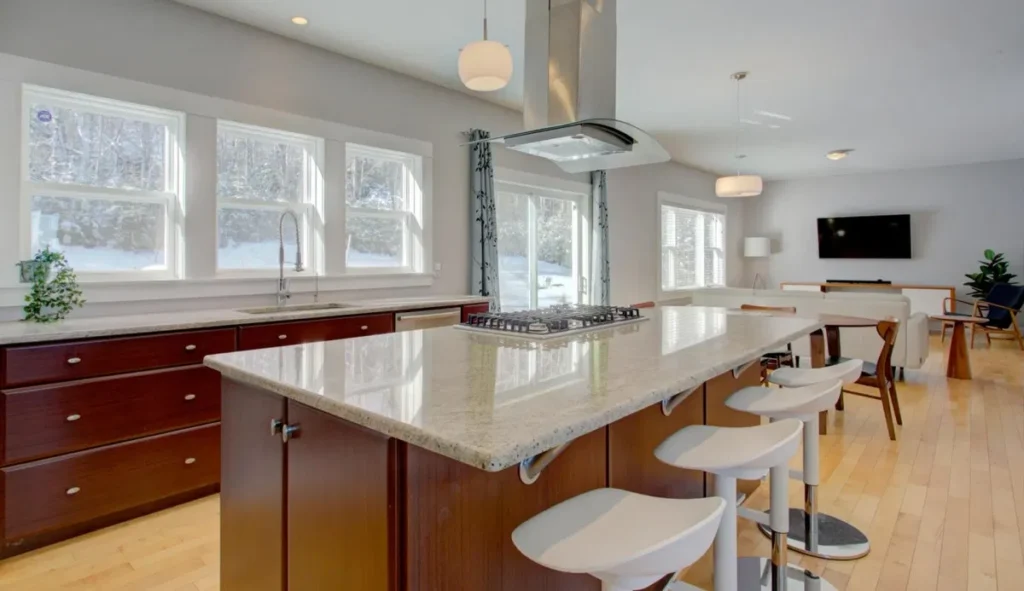
The Complete Real Estate Photography Workflow (Start to Finish)
A professional real estate photography workflow is more than a list of camera settings.
It is the complete system that moves a client from booking to preparation, from preparation to capture, and from capture to a polished gallery delivered on time.
After more than 14 years as a full-time real estate photographer and photographing over 10,000 homes, I have learned that the photographers who build sustainable businesses are not necessarily the ones who spend the most time perfecting individual images.
They are the ones who create a repeatable process.
That process helps you:
- Shoot faster without rushing
- Avoid missed rooms and forgotten services
- Deliver consistent quality
- Reduce editing and administrative time
- Create a better client experience
- Increase the value of every appointment
- Build a business that can eventually support a team
This is the workflow I recommend for a modern real estate media business offering still photography, drone, video, and floor plans.
Scott’s Field Note: You are not paid for how long you spend at the property or how many hours you sit at your computer. You are paid for the quality of the finished media, the reliability of your service, and the convenience you provide to the client.
Workflow Summary. From Booking to Follow-Up
| Phase | Primary objective | Main output |
|---|---|---|
| Booking and intake | Capture accurate job details | Confirmed order and client information |
| Property preparation | Make sure the home and schedule are ready | Prepared property and clear expectations |
| Travel and arrival | Start the appointment professionally | Confirmed scope and efficient setup |
| Still photography | Capture complete, consistent coverage | Bracketed RAW photographs |
| Drone operations | Add useful property and location context | Aerial photos and video |
| Video walkthrough | Create smooth marketing footage | Interior and exterior video clips |
| Floor-plan scanning | Provide useful spatial information | Floor-plan scan for processing |
| Ingest and backup | Protect and organize the files | Structured project folders |
| HDR processing | Complete the heavy editing efficiently | Blended, balanced images |
| Lightroom retouching | Apply professional quality control | Final photo gallery |
| Delivery | Make the media easy to access | Branded gallery and downloads |
| Follow-up and automation | Encourage repeat business | Feedback, referrals, and recurring orders |
The exact timing will vary depending on the property, services, travel, and client requirements. The important point is that every stage has a purpose and a defined next step.
Phase 1: Client Booking and Job Intake
Your workflow begins before you arrive at the property.
If the booking process is disorganized, every later stage becomes more difficult. Missing information leads to extra emails, incorrect quotes, forgotten add-ons, and avoidable delays.
Use an online booking and client-management system such as HDPhotoHub to centralize the order.
Your booking form should collect:
- Property address
- Agent name and contact information
- Seller or occupant contact information, when appropriate
- Property size
- Number of bedrooms and bathrooms
- Services required
- Preferred date and time
- Access instructions
- Special features to photograph
- Delivery deadline
- Billing and payment information
- Any restrictions on drone operations or photography
The client should be able to select a package rather than explaining the entire job through email.
For example, your service menu might include:
- HDR photography
- Drone photography
- Drone video
- Walkthrough video
- Floor plans
- Virtual tours
- Virtual staging
- Twilight photography or virtual twilight editing
This is where you can increase average order value. If the client books photos first and then has to email you separately about a floor plan or drone service, there is a greater chance that the add-on will be forgotten.
Send the Preparation Instructions Automatically
Immediately after the booking is confirmed, send a preparation email.
The email should explain what the client needs to do before you arrive:
Interior preparation
- Turn on all lights
- Replace burned-out bulbs
- Remove personal photographs and valuables
- Clear kitchen and bathroom counters
- Put away pet items, toys, and laundry
- Make beds and tidy bedrooms
- Remove unnecessary furniture
- Open or close blinds depending on the view
- Ensure the home is clean and photo-ready
Exterior preparation
- Move vehicles away from the home
- Remove garbage and recycling bins
- Put away hoses, tools, and lawn equipment
- Clean patios, decks, and pool areas
- Arrange outdoor furniture
- Mow or tidy the lawn when necessary
Be clear about the difference between light styling and cleaning.
You can straighten pillows, move a small object, or adjust a chair. You should not become responsible for preparing an entire property that was not ready when you arrived.
Your preparation message should also explain:
- Whether people and pets need to leave
- How access will work
- What happens if the property is not ready
- Your cancellation policy
- Your expected delivery window
- Whether drone service depends on weather and legal airspace
A clear preparation process improves image quality before you even unpack your camera.
For more guidance on building a profitable service structure, review the Real Estate Photography Pricing Guide.
Phase 2: Plan the Shoot Before You Leave
The day before the appointment, review the order.
This takes only a few minutes, but it prevents many expensive mistakes.
Confirm:
- The address
- The appointment time
- The services ordered
- The estimated property size
- The required delivery date
- Weather conditions
- Sun direction and exterior lighting
- Drone airspace and local operating requirements
- Travel time and parking considerations
- Any special instructions from the agent
Create a job-specific checklist.
A standard multi-service checklist might include:
- Camera body
- Wide-angle lens
- Spare batteries
- Memory cards
- Tripod
- Geared head
- Remote or camera app
- Drone and batteries
- Drone controller
- Required identification or flight documentation
- Video camera or gimbal
- Wireless microphone
- Phone or tablet for floor-plan scanning
- Cleaning cloth
- Small styling kit
- Charger or power bank
For still photography, a reliable wide-angle lens is more important than constantly upgrading camera bodies. Depending on your system, options such as the Sony FE 16-35mm f/2.8 GM II, Canon RF 15-35mm f/2.8 L, or Nikon Z 14-30mm f/4 S can provide useful flexibility for interiors.
You can compare complete camera, lens, tripod, and lighting setups in the Ultimate Real Estate Photography Gear Guide.
Phase 3: Travel and Arrival
Build enough travel time into your schedule that you do not arrive stressed.
Rushing into a property creates small mistakes:
- Forgetting to inspect a room
- Missing a special feature
- Failing to check the exterior
- Starting the drone work before checking the weather
- Capturing video without a clear route
- Leaving a battery or accessory in the vehicle
When you arrive, park thoughtfully and avoid blocking the property or neighboring homes.
Introduce yourself to the agent or occupant and confirm:
- Which areas are included
- Whether any rooms are off-limits
- Which features deserve special attention
- Whether the property has been prepared
- Whether the seller has any concerns
- Whether the agent wants an on-camera introduction or voiceover
Then walk through the entire property before setting up the camera.
This walk-through is not wasted time. It helps you understand the layout and identify:
- The strongest hero angles
- Problem areas
- Clutter that needs to be moved
- Views worth highlighting
- Areas requiring additional lighting
- Potential drone compositions
- The best route for the video walkthrough
If a room is not ready, communicate before you begin shooting. It is better to solve the issue early than to discover later that the kitchen counters were covered in personal items or that a key room was overlooked.
Phase 4: Capture the Still Photography
Still photography is usually the foundation of the real estate media package.
The goal is not to photograph every possible angle. The goal is to create a complete and accurate visual story of the property.
Use a Consistent Camera Setup
For a typical HDR interior workflow, use:
- RAW capture
- A sturdy tripod
- Low ISO
- A practical aperture, often around f/8 to f/11
- Manual exposure
- Fixed white balance
- Manual focus after establishing focus
- Three-frame bracketing as a starting point
A typical three-frame bracket might be:
- -2 EV
- 0 EV
- +2 EV
For rooms with very bright windows or deep shadows, use five exposures when necessary.
The purpose of bracketing is to preserve detail in both the interior and the exterior view. It is not to create an exaggerated HDR appearance.
The Complete HDR Real Estate Photography Guide covers bracketing, camera setup, window pulls, blending, and common HDR problems in greater detail.
Photograph in a Logical Order
A repeatable room order prevents missed coverage.
One practical sequence is:
- Front exterior
- Entry and foyer
- Main living area
- Kitchen
- Dining area
- Primary bedroom
- Primary bathroom
- Secondary bedrooms
- Secondary bathrooms
- Office or bonus rooms
- Laundry and utility spaces
- Basement or lower level
- Backyard and outdoor features
- Additional details and alternate angles
The order can change based on lighting or property layout, but avoid wandering randomly from room to room.
In each room:
- Identify the strongest angle.
- Set the tripod at a consistent height.
- Keep vertical lines straight.
- Check the edges of the frame.
- Remove small distractions.
- Confirm the lights and blinds.
- Focus once.
- Fire the bracket.
- Review difficult scenes.
- Move on.
A geared head such as the Manfrotto 410 Junior Geared Head can make small compositional corrections faster and more precise than repeatedly loosening and tightening a ball head.
Shoot for the Edit
Editing time is determined partly by what you do in the room.
Before shooting, check:
- Is the camera level?
- Are verticals straight?
- Is the lens too wide?
- Is a light fixture clipped at the top?
- Is a window reflection distracting?
- Is the camera or tripod visible in a mirror?
- Is there unnecessary empty ceiling or floor?
- Are doors positioned consistently?
A few seconds of preparation can save several minutes in Lightroom or Photoshop.
For more post-production guidance, see the Real Estate Photography Editing Workflow.

Phase 5: Capture Drone Photography Safely
Drone media can add useful context that ground-level photography cannot provide.
It can show:
- The property’s lot
- Landscaping
- Waterfront or acreage
- Nearby parks and trails
- The relationship between the home and surrounding streets
- Views that are not visible from inside the property
My primary drone recommendation is the DJI Air 3S. Its multiple focal lengths provide flexibility for both property-wide views and more compressed neighborhood compositions.
For travel, tight neighborhoods, or situations where a lightweight setup is more practical, consider the DJI Mini 5 Pro.
The specific drone matters less than your operating discipline.
Before flying:
- Check local aviation regulations
- Confirm whether the location is in controlled or restricted airspace
- Complete any required authorization
- Check weather and wind
- Inspect the aircraft and propellers
- Confirm battery levels
- Check the return-to-home settings
- Identify people, vehicles, wires, trees, and other hazards
- Confirm that the agent or property owner has authorized the service
- Avoid making promises about drone delivery if conditions are unsuitable
A safe flight is more important than getting one extra angle.
Use a Short, Repeatable Flight Plan
For many residential properties, begin with a small set of intentional compositions:
- Front oblique showing the home and lot
- Rear oblique showing the yard or outdoor features
- Higher wide shot showing property context
- Straight-down lot or roof composition when useful
- Neighborhood or view image when relevant and permitted
Capture stills first if those are the client’s primary deliverable. Then record video clips if ordered.
Avoid collecting hundreds of nearly identical aerial images. More files create more culling and editing work without necessarily improving the final gallery.

Phase 6: Record the Video Walkthrough
Video should have a purpose.
A walkthrough is not simply a camera moving through every room. It should guide the viewer through the property in a way that communicates flow, scale, and the features the agent wants buyers to notice.
For quick, efficient walkthroughs, I recommend the DJI Osmo Pocket 4 Creator Combo. The built-in 3-axis gimbal helps create stabilized footage, and the Creator Combo is useful when you need wireless audio and a small fill light.
For more advanced productions using a mirrorless camera, the DJI RS 5 can provide stabilized movement with a larger camera setup.
Follow a Simple Video Route
Before recording, decide:
- Where the video begins
- Whether the agent will appear on camera
- Where the strongest transitions are
- Which rooms deserve longer shots
- Whether you are creating horizontal, vertical, or both formats
- Where the video ends
A practical sequence is:
- Exterior establishing shot
- Entry
- Main living area
- Kitchen and dining
- Primary suite
- Major feature or view
- Outdoor living area
- Closing exterior
Move slowly and deliberately. Avoid fast pans, unnecessary whip movements, and long clips of unimportant spaces.
Capture a few detail clips as well:
- Fireplace
- Fixtures
- Cabinetry
- Staircase
- View
- Pool
- Landscaping
- Architectural details
If you are recording an agent introduction or voiceover, use a reliable microphone and capture room tone where possible. Clean audio can make a simple walkthrough feel significantly more professional.
Phase 7: Scan the Floor Plan
Floor plans help potential buyers understand how the property connects.
They are also an efficient add-on because the capture process can be completed while you are already on site.
For a scan-based workflow, use the CubiCasa app or the floor-plan solution that best fits your market and service offering.
Before scanning:
- Confirm the floor-plan service was ordered
- Open doors to rooms that should be included
- Turn on sufficient lighting
- Remove obstacles from walkways
- Check that all levels are accessible
- Confirm which spaces should be labeled
- Make sure the phone or tablet has sufficient battery
Follow a consistent path through the property.
Scan the main level from one end to the other, then complete additional levels systematically. Avoid jumping between rooms because that makes it easier to miss closets, hallways, bathrooms, or stair connections.
After completing the scan:
- Confirm that all levels were captured
- Review the room layout
- Check that the scan uploaded successfully
- Add any required notes
- Record the project name and property address consistently
Do not promise exact measurements unless the service and process you use support that level of accuracy. Explain clearly what the client is receiving.

Phase 8: Ingest, Organize, and Back Up the Files
When you return to the office, do not begin editing immediately.
First, create a consistent project structure.
For example:
2026-08-17_123-Main-Street/
├── RAW/
├── HDR-Processed/
├── Lightroom/
├── Final-Photos/
├── Drone/
├── Video/
├── Floor-Plan/
└── Delivery/
Copy the files from each card into the correct folder.
Do not format the memory cards until:
- The files have been copied
- The copy has been verified
- A second backup exists
- The project can be opened successfully
Separate stills, drone files, video, and floor-plan information. This makes the project easier to edit and easier to delegate later.
Use a consistent naming convention based on the date and property address. The exact convention matters less than using the same one every time.
Phase 9: Batch Process HDR Images with AutoHDR
Once the files are organized, group the bracketed exposures and upload them to AutoHDR.
The purpose of automation is to remove repetitive work while keeping your professional judgment in the process.
A practical batch workflow is:
- Select the usable RAW files.
- Upload the bracketed sets.
- Confirm that the brackets are grouped correctly.
- Choose the appropriate processing settings.
- Start the batch.
- Review the returned files.
- Flag images that need additional work.
- Export the approved images for Lightroom.
AutoHDR can be particularly useful for routine bracket processing, balanced exposure, window detail, and consistency across a gallery. However, do not treat the output as automatically final.
Review for:
- Incorrect bracket grouping
- Unnatural window brightness
- Halos
- Ghosting
- Strange masking around plants or furniture
- Color casts
- Overly bright ceilings
- Perspective problems
- Reflections or camera removal issues

A good automated workflow is not “upload and never look at it.”
It is:
- Automate the repetitive work
- Inspect the result
- Correct only what needs correction
- Deliver consistently
Phase 10: Complete the Lightroom and Photoshop Quality Check
Use Adobe Creative Cloud, including Lightroom and Photoshop, for organization, polishing, and detailed corrections.
In Lightroom, work through the gallery in a consistent order.
Lightroom quality-control checklist
- Correct vertical lines
- Level the horizon
- Confirm the crop
- Check white balance
- Balance exposure between rooms
- Correct lens distortion
- Reduce distracting color casts
- Check windows and bright light fixtures
- Apply consistent contrast and saturation
- Remove minor distractions
- Sync appropriate settings across similar images
The final gallery should feel consistent. The kitchen should not be dramatically warmer than the living room unless the lighting genuinely requires it.
Use Photoshop only when it provides a meaningful improvement, such as:
- Complex object removal
- Difficult window blending
- Reflection cleanup
- Advanced masking
- Removal of distracting wires or signs
- Corrections that cannot be completed cleanly in Lightroom
Do not spend 15 minutes correcting an item that the viewer is unlikely to notice. Your job is to deliver polished marketing media, not to create an invisible museum restoration.
Phase 11: Prepare and Deliver the Gallery
Delivery is part of the product.
A good gallery makes the client feel that the job is complete, organized, and easy to use.
Upload the final photos, drone media, video, and floor plan to your delivery system. HDPhotoHub can help centralize client delivery, ordering, and business administration.
Before sending the link, complete a final delivery check:
- Are all ordered services included?
- Are the photos in the correct order?
- Do the downloads work?
- Are the files exported at the correct size and format?
- Is the property address correct?
- Is the client name correct?
- Are the floor plans labeled correctly?
- Does the video play properly?
- Are drone files included?
- Is the gallery branding accurate?
Then send a short, useful delivery email.
Include:
- The gallery link
- Download instructions
- A reminder that all ordered services are included
- Any notes about revisions
- Your contact information
- A reminder about usage rights or licensing, if applicable
Keep the message simple. The client should not have to search through a long email to find the download button.
Phase 12: Follow Up and Create Repeat Business
The workflow does not end when you send the gallery.
Follow up after delivery to confirm that the client received the files and ask whether anything needs attention.
A simple message is enough:
Hi, the gallery for [property address] has been delivered. Please let me know if you have any trouble downloading the files or if there is anything you would like me to review. Thanks again.
After the client has had time to use the media, follow up again with:
- A testimonial request
- A review request
- A reminder about future bookings
- A suggestion for a relevant add-on
- A referral request
Store the client’s preferences in your client-management system.
Useful information includes:
- Preferred appointment times
- Typical package
- Common service area
- Billing details
- Delivery preferences
- Whether they regularly order drone or floor plans
- Their next listing or expected listing volume
You can explore additional client-management options through the RE Media Systems Business Systems category.
Automate the Repetitive Communication
Create templates and automations for:
- Booking confirmations
- Property preparation
- Appointment reminders
- Weather-related drone notices
- Gallery delivery
- Revision requests
- Testimonial requests
- Rebooking reminders
- Referral campaigns
Automation should make communication more consistent, not less personal.
The best systems handle predictable messages automatically while leaving you available for conversations that require judgment.
Measure the Workflow
Once you have used this process for several weeks, measure where your time is going.
Track:
- Average travel time
- Time on site
- Number of rooms photographed
- Time spent scanning floor plans
- Editing time per property
- Delivery time
- Revision frequency
- Average order value
- Add-on attachment rate
- Repeat booking rate
If editing is taking too long, improve capture consistency or test an automated processing tool.
If appointments are taking too long, simplify your shot list or reduce unnecessary setup.
If your average order value is low, improve your packages and explain add-ons more clearly during booking.
If revisions are common, improve your quality-control checklist before delivery.
The purpose of measurement is not to make you work faster at any cost. It is to identify the bottleneck that prevents you from delivering quality work profitably.
Common Workflow Problems
The property is not ready
Send preparation instructions in advance and explain your policy for homes that require significant work.
A drone flight is not possible
Never force the flight. Offer to reschedule the aerial portion or explain the available alternatives.
A room is missed
Use a room-by-room checklist and complete a final walk-through before leaving.
The bracket is unusable
Review difficult rooms on location. If necessary, capture another bracket before packing up.
Editing takes all night
Use a consistent folder structure, batch processing, Lightroom presets, and selective Photoshop work. Read the Real Estate Photography Editing Workflow for a deeper system.
Delivery is delayed
Set a realistic turnaround time and avoid promising a delivery window that depends on perfect conditions every time.
Clients keep requesting extra work
Define what is included in the package and document revision, reshoot, and retouching policies.
Frequently Asked Questions
1. What is the first step in a real estate photography workflow?
The first step is collecting accurate information during booking. Confirm the address, property size, services, access instructions, special requests, deadline, and payment details before the appointment is placed on your calendar.
2. How long should a real estate photography appointment take?
There is no universal time. Property size, preparation, services, travel, and quality expectations all matter. A standardized workflow helps you create reliable time targets without rushing difficult homes.
3. Should I photograph the exterior first or last?
It depends on the light, weather, and property. If the front of the home has favorable light when you arrive, photograph it early. If the light will improve later, complete the interior first and return outside.
4. What camera settings are a good starting point for HDR interiors?
Use RAW, low ISO, a practical aperture around f/8 to f/11, manual exposure, fixed white balance, manual focus, and a three-frame bracket at -2, 0, and +2 EV. Adjust for the room.
5. Do I need a tripod for real estate photography?
A tripod remains useful for stable compositions, low ISO, consistent brackets, and straight architectural lines. Handheld capture can be useful in limited situations, but it is not a replacement for a disciplined tripod workflow in every home.
6. Which drone should I use for real estate photography?
The DJI Air 3S is a strong primary option for photographers who want multiple focal lengths and a reliable deployment workflow. The DJI Mini 5 Pro is useful when portability and quick deployment are priorities.
Always follow the laws and operating requirements where you fly.
7. What is a practical video camera for real estate walkthroughs?
The DJI Osmo Pocket 4 Creator Combo is a convenient option for stabilized walkthroughs, quick social content, and jobs where a large camera and gimbal would slow you down.
8. How do I include floor plans in my workflow?
Add floor plans during booking, scan the property systematically after stills and video, confirm that the upload completed, and deliver the finished plan with the rest of the gallery. CubiCasa is one option to evaluate at CubiCasa.com.
9. Should I use AutoHDR or edit manually?
Use the workflow that produces consistent quality at a sustainable cost. For many photographers, AutoHDR can reduce repetitive HDR processing while Lightroom and Photoshop remain useful for quality control and difficult corrections.
10. How should I organize my project files?
Use one folder for each property and separate RAW files, processed HDR images, Lightroom files, final photos, drone, video, floor plans, and delivery assets. Consistency is more important than the exact naming convention.
11. What should I check before delivering a gallery?
Confirm that every ordered service is included, the images are straight and consistent, the windows look natural, the files download correctly, the video plays, and the property and client information are accurate.
12. How can I get more repeat bookings?
Make the complete experience reliable. Deliver on time, communicate clearly, store client preferences, follow up after delivery, request feedback, and make rebooking simple.
Final Recommendation
The complete real estate photography workflow is not about adding more complexity.
It is about connecting each stage so that the next stage becomes easier.
- Collect complete information during booking.
- Send preparation instructions automatically.
- Review the property and services before you leave.
- Arrive with the correct gear and a clear plan.
- Capture stills with consistent compositions and brackets.
- Operate the drone safely and intentionally.
- Record a simple, useful video walkthrough.
- Scan the floor plan systematically.
- Organize and back up every file.
- Batch process HDR images with automation where appropriate.
- Complete a professional Lightroom and Photoshop quality check.
- Deliver all media through a clear, convenient gallery.
- Follow up and automate the repetitive communication.
This system helps you shoot faster, earn more from each appointment, deliver better quality, and build a real business instead of creating another job for yourself.
At RE Media Systems, that is the standard I continue to work toward after photographing more than 10,000 homes: practical systems that hold up in real properties, under real deadlines, with real clients.
Keep Building Your Workflow
- Read the Complete HDR Real Estate Photography Guide.
- Improve your post-production with the Real Estate Photography Editing Workflow.
- Review the Ultimate Real Estate Photography Gear Guide.
- Compare equipment on the Recommended Gear page.
- Build profitable packages with the Real Estate Photography Pricing Guide.
- Explore the Shoot Faster resources.
- Browse the complete RE Media Systems Guides.
- Explore AutoHDR for automated HDR processing.
- Watch practical workflow training on the RE Media Systems YouTube channel.
Affiliate disclosure: Some product links in this guide are affiliate links. I recommend equipment and software based on how well they can support a practical real estate media workflow. The recommendation comes first; the commission does not.