
Disclosure: Some links in this article are affiliate links. I only recommend tools that can provide practical value in a real estate media workflow.
If you are spending more time editing real estate photos than you spend photographing homes, your workflow needs attention.
I have been photographing homes full-time for more than 14 years, and I have photographed over 10,000 properties. One lesson has become increasingly clear: you are not paid for how long you sit in front of your computer. You are paid for the quality, speed, and reliability of what you deliver.
That does not mean quality control is optional. It means repetitive work such as HDR blending, basic color correction, window pulls, straightening, and exporting should not consume your entire evening.
This is where an automated workflow can help.
In this guide, I will walk through a practical AutoHDR workflow for real estate photographers. We will cover:
- How to prepare your files before uploading
- How to batch-process an entire property
- How to handle RAW files and bracketed exposures
- How to use window pulls correctly
- How to manage perspective and vertical alignment
- How to connect delivery platforms
- How to perform a final quality-control review
- What to do when automation produces an imperfect result
The goal is simple: shoot faster, deliver better images, and create more room in your business for additional clients or services.
Quick Verdict: Is AutoHDR Worth Using?
AutoHDR is worth testing if you regularly photograph bracketed real estate interiors and want to reduce repetitive post-production.
It is especially useful for:
- Solo photographers processing multiple properties per week
- Small media companies handling volume
- Photographers who want consistent HDR results
- Businesses using delivery platforms such as HDPhotoHub, Aryeo, or Spiro
- Photographers who want to spend less time manually blending every room
It is not a replacement for a professional photographer’s judgment. You still need to capture usable source files, review the final images, and correct exceptions.
My preferred approach is a hybrid workflow:
- Capture consistent bracketed images.
- Let AutoHDR handle the repetitive editing.
- Review the completed gallery.
- Use Lightroom or Photoshop for images requiring additional work.
- Deliver through your normal client-management system.
You can try AutoHDR here, then compare the results with your current process.
Scott’s Field Note: The best editing system is not the one with the most buttons. It is the one that gives you repeatable results without requiring you to make the same decision 40 times per property.
Why Automate Real Estate Photo Editing?
Editing automation is not about avoiding creative work. It is about removing repetitive work that does not create much additional value.
A traditional HDR workflow may require you to:
- Sort dozens or hundreds of bracketed files
- Group exposures manually
- Merge each bracket
- Correct white balance
- Recover window detail
- Straighten vertical lines
- Remove small distractions
- Export several file sizes
- Upload the gallery to a delivery platform
That process is manageable when you photograph one home occasionally. It becomes a bottleneck when you are handling several listings every day.
The business problem is not only time. Manual editing also creates inconsistency.
You may process the first room with one exposure style, then become more aggressive with the next room because you are tired. You may straighten some images but overlook others. You may spend 20 minutes perfecting a kitchen and only two minutes reviewing a bedroom.
Automation helps standardize the first pass. Your attention can then go toward the images that actually need it.
For a broader look at this philosophy, read the RE Media Systems real estate photography editing workflow.
What AutoHDR Can Handle
AutoHDR is built specifically around real estate photography and includes tools for common property-media tasks.
Depending on the workflow and features available in your account, AutoHDR can assist with:
- HDR editing
- Bracket grouping and blending
- Window pulls
- White-balance correction
- Perspective correction
- Image straightening
- Sky replacement
- Real and virtual twilight effects
- Grass enhancement
- Removals
- TV-screen adjustments
- Bulk edits
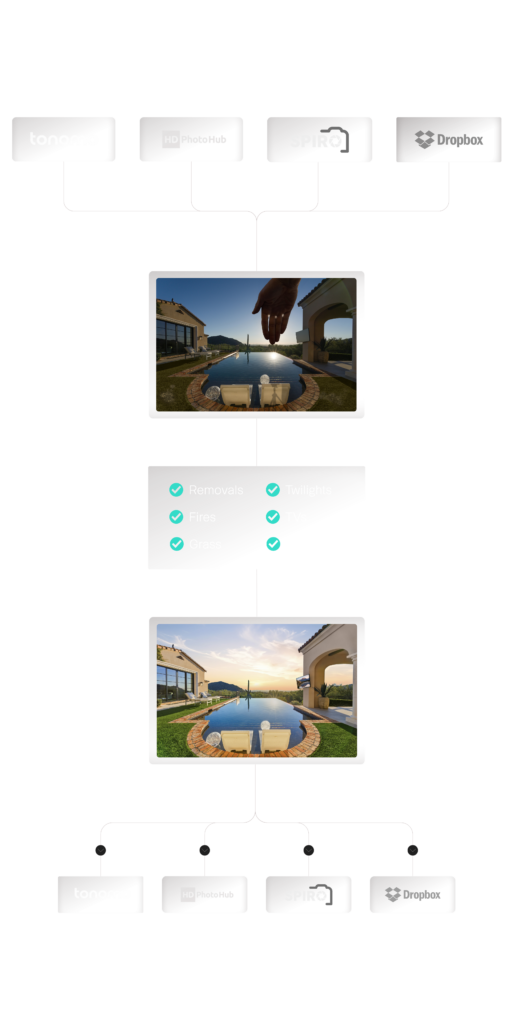
- Delivery and storage automations
The important distinction is between automation and automatic perfection.
Automation gives you a fast, consistent starting point. It does not mean every image will require zero review. The final quality still depends on:
- How well you photographed the property
- Whether the brackets contain enough dynamic range
- Whether there was movement between frames
- How complex the lighting was
- Whether the software interpreted the scene correctly
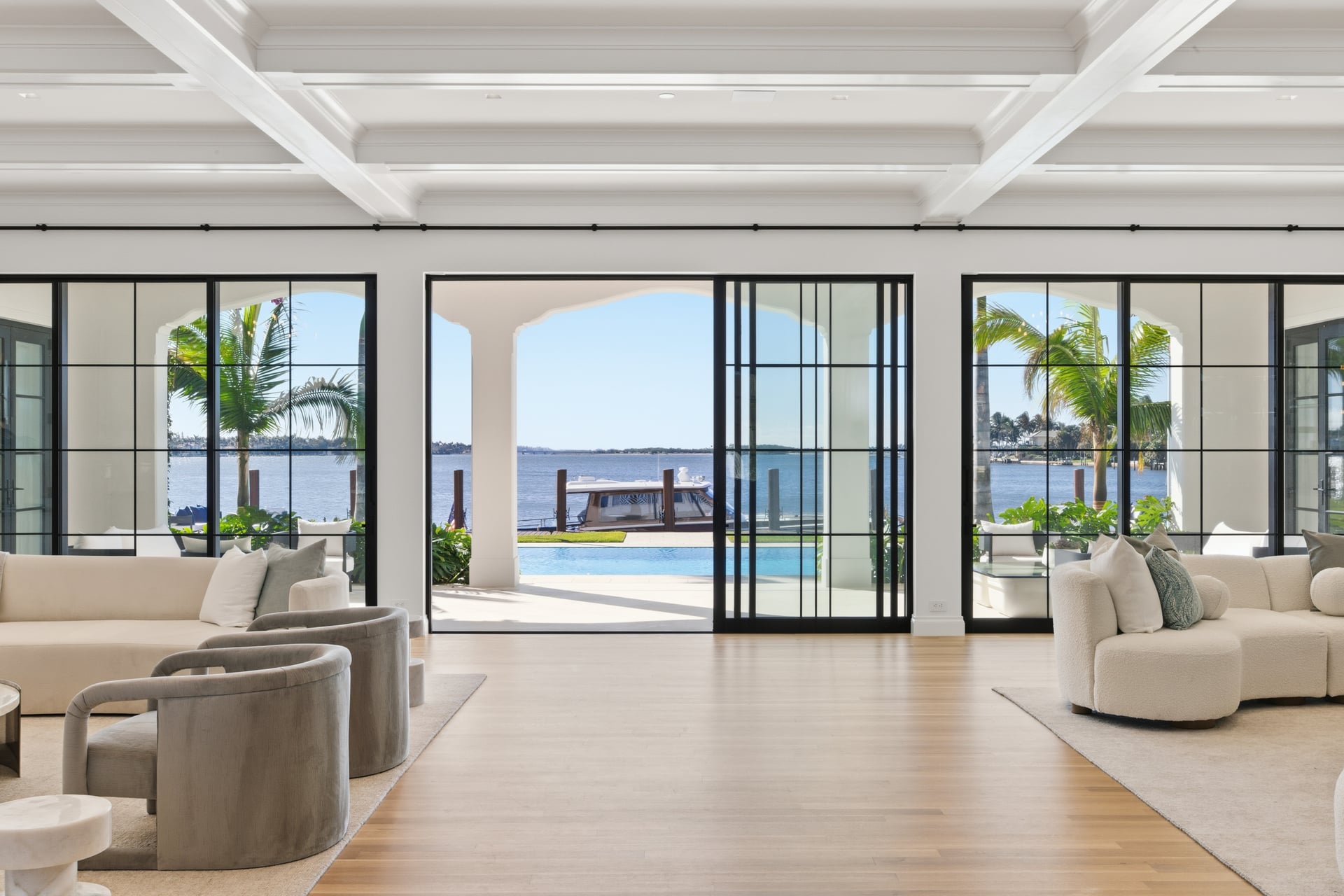
Step 1: Capture Files That Are Easy to Automate
Editing automation begins on location.
If the source files are inconsistent, no editing platform can reliably produce a polished gallery. The more predictable your capture process is, the more predictable your automated results will be.
Use a Consistent Bracketing Method
For most interiors, a three-frame bracket is a practical starting point:
- -2 EV
- 0 EV
- +2 EV
For rooms with extreme contrast, bright windows, or deep shadows, use five frames:
- -4 EV
- -2 EV
- 0 EV
- +2 EV
- +4 EV
The exact settings depend on your camera and the room. The principle is to capture enough information for both the interior and exterior portions of the scene.
Recommended Starting Settings
Use these as a starting point rather than an unbreakable rule:
- File type: RAW, unless your workflow specifically uses JPEG
- ISO: The lowest practical ISO
- Aperture: Approximately f/8 to f/11
- Exposure mode: Manual
- White balance: Fixed Kelvin or a fixed preset
- Focus: Focus once, then switch to manual focus
- Drive mode: Continuous drive
- Camera position: Stable and level on a tripod
A tripod is still useful even when your camera can capture handheld brackets. It gives you consistent composition, reduces alignment problems, and allows slower shutter speeds without camera movement.
For more detail, read the Complete HDR Real Estate Photography Guide.
Keep the Camera Still
AutoHDR can align many slightly misaligned frames, but it is better not to create a problem in the first place.
Before shooting:
- Lock the tripod.
- Confirm that the camera is level.
- Avoid touching the camera during the bracket.
- Use continuous drive or a remote trigger.
- Turn off ceiling fans.
- Ask people and pets to remain still.
- Wait for curtains or branches to stop moving when possible.
This reduces ghosting and gives the software cleaner frames to work with.
Step 2: Organize the Property Files
Before uploading, create a predictable folder structure.
For example:
2026-08-17_123-Main-Street/
├── RAW/
├── AutoHDR_Processed/
├── Final_Delivery/
└── Notes/
You can use your own naming convention. The important thing is that each property is clearly separated.
A consistent structure helps you:
- Avoid combining two properties into one upload
- Find the original RAW files later
- Identify processed and delivered files
- Train an assistant or virtual assistant
- Troubleshoot an order more quickly
If you photograph several properties in one day, do not leave all of the files in one camera-card folder. Separate them as soon as possible.
Step 3: Choose RAW or JPEG Uploads
AutoHDR supports multiple file types, but your choice should match your needs.
RAW Files
RAW files preserve more original image data and provide greater flexibility during editing. They are useful when:
- You want maximum dynamic range
- You are photographing challenging interiors
- You need to preserve highlight or shadow information
- You want the software to work from the original camera files
The tradeoff is larger file size and slower uploading.
JPEG Files
JPEG files may upload more quickly and can be practical when:
- You have a fast, consistent camera-generated JPEG workflow
- The property has moderate contrast
- You need to reduce upload time
- Your storage or internet connection is limited
However, JPEG files contain less editing information than RAW files. If the window is already clipped or the shadows are heavily compressed, uploading a JPEG will not recreate missing detail.
For most professional real estate work, I prefer capturing RAW and then testing which upload format gives the best balance of quality, speed, and cost for your business.
Step 4: Upload a Full Shoot in Bulk
Once your property files are organized, open AutoHDR and begin a new project or listing.
The basic workflow is:
- Open AutoHDR.
- Start a new shoot or listing.
- Select the property files.
- Drag and drop the folder or choose the files through the upload window.
- Confirm that the correct property is selected.
- Begin processing.
- Wait for AutoHDR to group and process the images.
AutoHDR’s batch-upload workflow is designed so you do not need to process every room one at a time.
That matters because the time savings come from removing repetitive interaction. You should not need to sit beside the computer and approve every bracket before the next one begins.
Verify the Upload Before Processing
Before starting, look for obvious problems:
- A second property accidentally included in the folder
- Missing frames from a bracket
- Duplicate files
- Corrupted files
- Drone images mixed into interior bracket sets
- Images from a previous job
- Files with inconsistent naming
If you catch these issues before processing, you avoid having to sort out a confusing gallery later.
What Happens During Processing?
AutoHDR can group bracketed files and process the images in bulk. It may apply adjustments such as:
- Exposure blending
- Color and white-balance correction
- Window-pull processing
- Perspective correction
- Image straightening
- Other selected editing tools
Processing time will depend on the number of files, file size, account settings, and current platform demand. Do not promise a specific turnaround time to clients until you understand your own average processing time.
Step 5: Configure Window Pulls Correctly
Window pulls are one of the most valuable parts of an automated real estate editing workflow.
A window pull combines the brighter interior exposure with a darker exposure that contains more detail outside the window. The result should show the view without making the room look unnaturally dark.
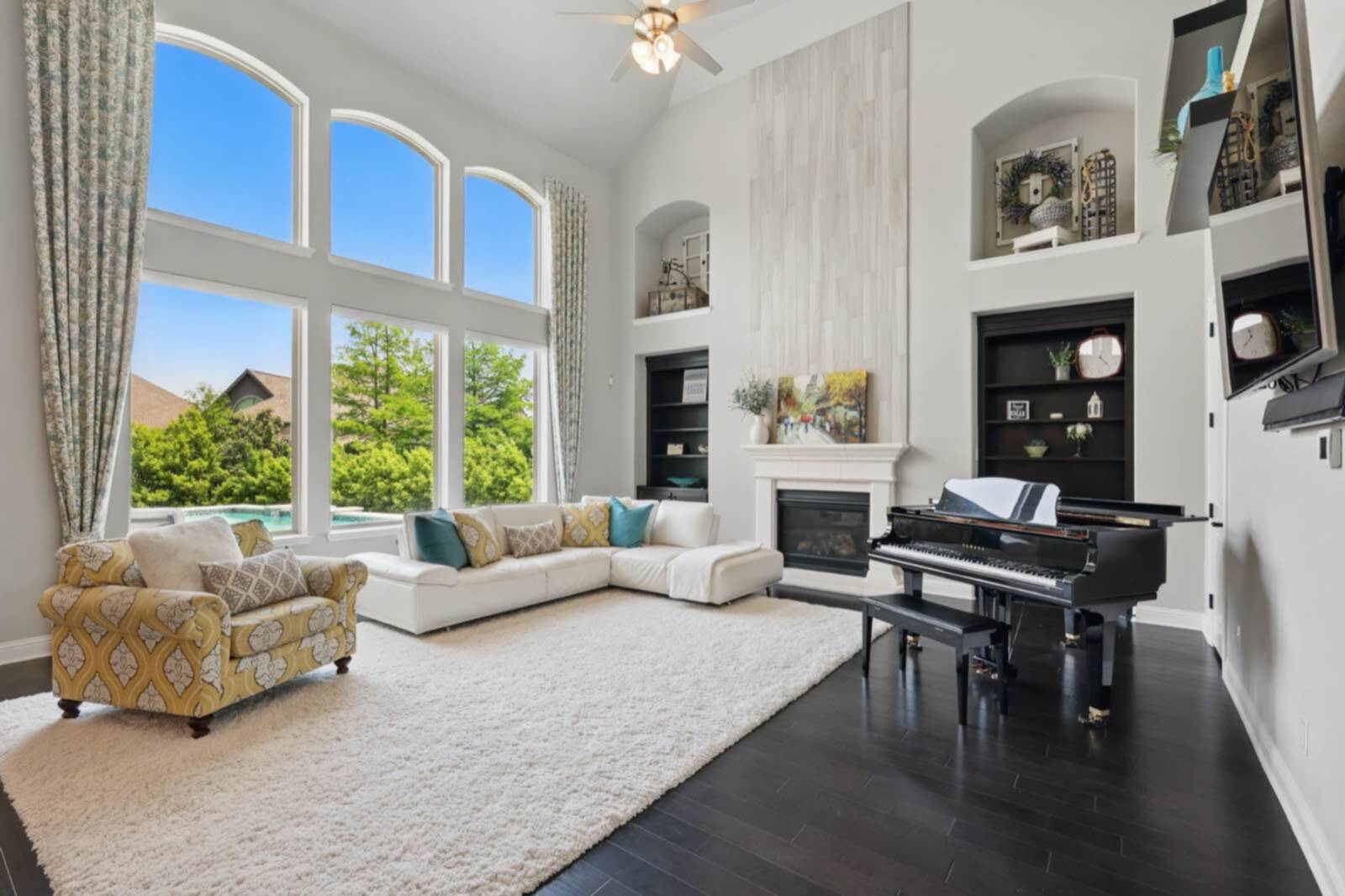
The Most Important Window-Pull Rule
The detail must exist in the source file.
If the window is completely white in every exposure, software cannot recover the view. You need at least one darker frame that records usable detail outside.
Before moving to the next room, check the darkest exposure when:
- The room has large windows
- The view is important to the listing
- Sunlight is entering directly
- The windows face a bright sky
- The interior is significantly darker than outside
If the -2 EV frame still clips the window, consider a five-frame bracket or an additional darker exposure.
What About Flashed Window Pulls?
Some photographers use a flashed window-pull frame as part of a flambient workflow. This can provide a clean, controlled view through the glass and reduce certain reflections or color casts.
AutoHDR provides support for flashed window-pull workflows. To get consistent results:
- Capture the ambient bracket without moving the camera.
- Capture the flashed window-pull frame from the same position.
- Keep the flash exposure controlled and consistent.
- Make sure the window-pull frame is clearly associated with the composition.
- Review the result for unnatural brightness or reflection changes.
You should not add a flashed frame simply because you can. Use it when the room or window genuinely benefits from it.
Review for Common Window-Pull Problems
After processing, inspect:
- Window-frame edges
- Curtain edges
- Reflections in glass
- Plants near windows
- Exterior branches
- Interior objects in front of the glass
- Halos around bright window areas
If the window pull looks too dark, too sharp, or disconnected from the room, reduce its strength or correct the image manually.
Step 6: Review Vertical Alignment and Perspective
Straight verticals are essential in real estate photography.
Walls, door frames, cabinets, windows, and corners should generally appear upright. If they lean dramatically, the photograph can look amateurish even when the exposure and color are excellent.
AutoHDR includes perspective correction and image-straightening features intended to reduce this type of manual work.
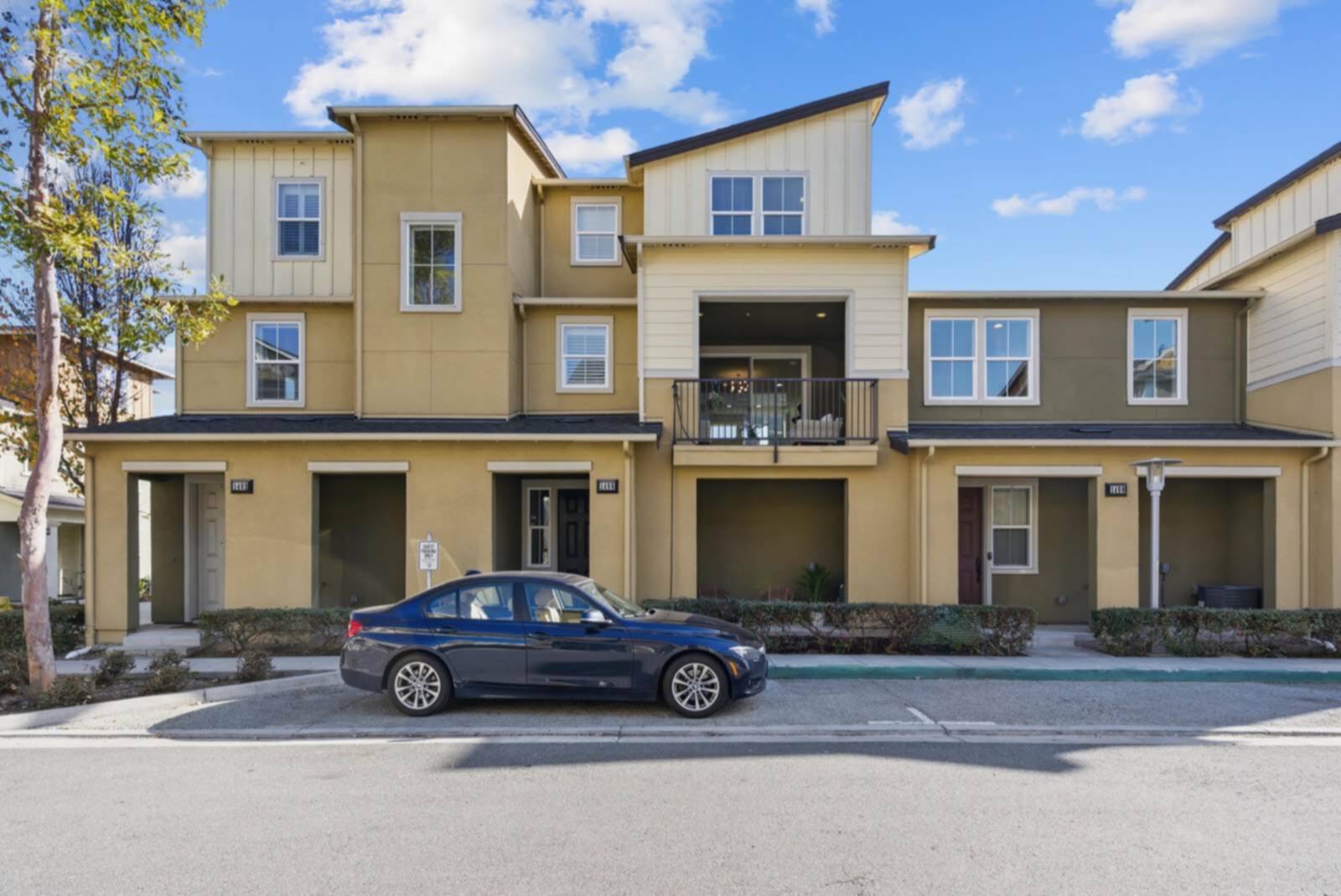
Start With Good Camera Placement
Software correction works best when you begin with a reasonable composition.
On location:
- Keep the camera level
- Avoid pointing sharply upward or downward
- Use a consistent camera height
- Leave enough room around the composition for correction
- Avoid placing important objects at the extreme edges of an ultra-wide frame
If you point the camera too far upward, the software may need to stretch the lower portion of the image significantly. That can make furniture and walls look distorted.
How to Review Perspective Corrections
Check the processed image at full size. Look at:
- Door frames
- Window frames
- Vertical wall edges
- Kitchen cabinets
- Fireplace surrounds
- Tile lines
- Furniture near the edges
Do not assume that “more correction” is always better. A perfectly mathematical correction can sometimes look less natural than a subtle correction, especially in a room with unusual architecture.
If AutoHDR’s correction is not appropriate for a specific image, use the available control to adjust or disable the correction, then finish the image in Lightroom or Photoshop if necessary.
Step 7: Connect AutoHDR to Your Delivery Workflow
Editing is only one part of automation. A photo is not finished until the client can access it.
AutoHDR provides automation options for delivery software and storage services. The available integrations shown on its platform include:
- Spiro
- HDPhotoHub
- Aryeo
- Tonomo
- Dropbox
The exact setup may vary by account and platform. You can review the current AutoHDR automation instructions through its automation knowledge base.
General Connection Process
The typical setup looks like this:
- Open the automation or integrations section in AutoHDR.
- Select your delivery or storage platform.
- Choose Connect, Set up, or the equivalent option.
- Sign in to the delivery platform.
- Authorize the connection.
- Select the destination account, project, or workflow.
- Save the automation settings.
- Run a small test before using it for every client.
The first test is important. Confirm:
- The correct property is created
- The correct client or agent is selected
- The files arrive in the expected folder
- File names remain usable
- The correct sizes are delivered
- The client notification works as intended
Delivery Platforms
If you use HDPhotoHub, Aryeo, or Spiro, investigate whether your current plan supports the AutoHDR integration and what information needs to match between the systems.
The objective is to create a simple path:
Capture → AutoHDR → Quality Control → Delivery Platform → Client
You may still want a manual approval step before the client receives the gallery. Automation should reduce repetitive work, not remove your final responsibility.
Dropbox Automation
Dropbox can also work as a bridge between capture, editing, and delivery.
A simple folder system could look like:
Dropbox/
├── AutoHDR_To_Process/
├── AutoHDR_Processed/
└── Delivered/
The exact folder names do not matter. What matters is that you know:
- Where new files go
- Where processed files appear
- Which folder is safe to archive
- Which folder is connected to delivery
Do not connect an active client-delivery workflow until you understand how files move through it. Test with a small sample property first.
Step 8: Apply a Consistent Style
Automation is most useful when the results match your brand.
AutoHDR may provide style or editing-profile options depending on your account. Use those options to develop a look that is:
- Bright but not washed out
- Natural rather than over-processed
- Consistent from room to room
- Neutral in white balance
- Controlled in saturation
- Appropriate for the property and market
Your style should not make every home look identical. A dark modern interior, a bright suburban home, and a luxury property with warm wood finishes may need slightly different treatment.
Still, your clients should recognize your work as soon as they open the gallery.
Step 9: Complete a Final Quality-Control Pass
Never deliver an automated gallery without reviewing it.
You do not necessarily need to inspect every pixel of every frame. You do need a repeatable quality-control checklist.
Review the Hero Images First
Start with the most important images:
- Front exterior
- Main living area
- Kitchen
- Primary bedroom
- Primary bathroom
- Any image the agent specifically requested
- Any image with a large window or difficult lighting
If these images look right, you can review the rest of the gallery more quickly.
Look for These Problems
Exposure
- Are the windows detailed?
- Are the shadows still natural?
- Are white walls clipped?
- Are light fixtures glowing excessively?
Color
- Is the ceiling neutral?
- Are warm lights believable?
- Are floors or cabinets too orange?
- Does the color change noticeably between rooms?
Perspective
- Are verticals straight?
- Does furniture look stretched?
- Are door frames distorted?
- Did the correction crop an important part of the room?
AI Artifacts
- Are objects missing or changed?
- Are reflections distorted?
- Are edges around windows clean?
- Did a plant, curtain, or railing confuse the software?
- Does any part of the image look digitally generated?
Consistency
- Does the gallery have a unified look?
- Are some rooms noticeably brighter than others?
- Is one image much warmer or cooler?
- Do exterior and interior images feel like they belong to the same property?
If you find a problem, correct only the affected image rather than manually rebuilding the entire gallery.
Step 10: Use Lightroom or Photoshop for Exceptions
Automation should handle the routine work. Your editing software should handle the exceptions.
Adobe Creative Cloud gives you access to Lightroom and Photoshop for finishing work.
Use Lightroom for:
- Exposure refinements
- White-balance adjustments
- Cropping
- Lens corrections
- Basic color consistency
- Batch adjustments
- Export presets
Use Photoshop for:
- Difficult window masks
- Complex object removal
- Reflections
- Power lines
- Advanced compositing
- Detailed cleanup on hero images
This hybrid approach is more practical than insisting that every image must be completed entirely by AI or entirely by hand.
Common AutoHDR Problems and Fixes
The Image Looks Too Bright
Check whether the brighter bracket is contributing too much to the blend. Also inspect whether the room contains mixed lighting or reflective white surfaces.
A natural real estate image does not need every shadow lifted completely.
The Window Pull Looks Unnatural
Confirm that the source frame contains a usable exterior view. Then inspect the window edges for halos and check whether the exterior is significantly darker than the interior.
You may need to reduce the window-pull effect or finish the mask manually.
Vertical Lines Still Look Wrong
Review the original camera position. If the camera was pointed sharply up or down, perspective correction may have limited information to work with.
Try reducing or disabling automatic correction and make a more controlled adjustment in Lightroom.
Brackets Are Not Grouping Correctly
Check that:
- The files belong to the same composition
- No frames are missing
- The file names were not changed in a confusing way
- The camera did not move substantially
- The files are supported and not corrupted
AutoHDR’s technical help center includes guidance for upload, grouping, RAW support, bracket count, and processing issues.
The Image Contains Ghosting
Look for movement during capture. Common causes include ceiling fans, curtains, trees, people, and pets.
If the ghosting is limited, correct the image manually. If it is severe, consider using a single clean frame for that particular area rather than forcing a difficult blend.
A Practical Automated Workflow for a Full Property
Here is the complete process I recommend testing:
- Prepare the property and create a clear shot list.
- Photograph each composition with a three-frame bracket.
- Use five frames when windows or contrast require more range.
- Capture a flashed window pull when the scene benefits from it.
- Copy the files into a property-specific folder.
- Back up the RAW files.
- Upload the property to AutoHDR in bulk.
- Select the appropriate editing and delivery options.
- Allow AutoHDR to group and process the images.
- Review window pulls and difficult rooms first.
- Check verticals, perspective, and straightening.
- Correct exceptions in Lightroom or Photoshop.
- Confirm the gallery and file sizes.
- Send the completed files to your delivery platform.
- Perform a final client-facing check before publishing.
This is the point where automation becomes a business system rather than just another software subscription.
Frequently Asked Questions
1. Can AutoHDR edit a complete real estate shoot in one batch?
Yes, AutoHDR is designed for bulk uploads and batch processing. Organize the files by property first so unrelated images do not enter the same project.
2. Should I upload RAW files or JPEGs?
RAW files generally provide more flexibility and dynamic range. JPEGs may upload faster and can work in some workflows. Test both with your camera and typical properties before standardizing your process.
3. How many brackets should I shoot?
Three frames at -2, 0, and +2 EV are a practical starting point for many rooms. Use five frames when the scene has extreme contrast or important window views.
4. Does AutoHDR create window pulls automatically?
AutoHDR includes window-pull functionality, but the result depends on your source files. You need to capture a dark enough exposure that preserves detail outside the window.
5. Can I use flashed window pulls?
AutoHDR’s technical documentation includes support for flashed window-pull workflows. Keep the camera fixed and capture the flash frame as part of a consistent process.
6. Does AutoHDR straighten vertical lines?
AutoHDR includes perspective correction and image-straightening features. Review the result carefully, especially in rooms photographed with an ultra-wide lens or a strongly tilted camera.
7. Can I turn off perspective correction?
AutoHDR’s technical documentation includes guidance for toggling perspective correction. If the automatic result looks unnatural, use the available control or complete the correction in Lightroom.
8. Can AutoHDR deliver directly to my client platform?
AutoHDR displays integrations for platforms including Spiro, HDPhotoHub, Aryeo, Tonomo, and Dropbox. Confirm that your account and plan support the connection before promising a fully automated delivery workflow.
9. Do I still need Lightroom or Photoshop?
For many standard properties, AutoHDR may handle much of the repetitive work. Lightroom and Photoshop remain valuable for quality control, difficult masks, reflections, object removal, and hero-image finishing.
10. What should I do if one image comes back incorrectly?
Do not rebuild the entire job immediately. Identify whether the issue came from capture, grouping, window detail, movement, perspective, or color. Correct the individual image manually when possible.
11. Can automation replace quality control?
No. Automation reduces repetitive editing, but you remain responsible for the final gallery. Review the hero images, difficult windows, perspective corrections, and any image that contains movement or complex reflections.
12. Is automated editing appropriate for luxury listings?
It can be, but luxury work usually deserves a more careful final review. Use automation for the first pass, then spend additional time on the hero images and any scene where material accuracy, reflections, or window views are especially important.
Final Recommendation
AutoHDR can be a useful part of a professional real estate photography workflow when you use it with disciplined capture and careful quality control.
The system I recommend is:
- Capture predictable brackets
- Keep the camera stable
- Include usable dark frames for window pulls
- Upload complete properties in batches
- Configure delivery integrations carefully
- Review perspective and vertical alignment
- Correct only the images that need additional work
- Deliver through a professional client platform
The biggest mistake is treating automation as a magic button. The better approach is to treat it as a production assistant. Give it consistent files, let it handle the repetitive work, and use your professional judgment for the final result.
After 14+ years and more than 10,000 homes photographed, I would rather build a workflow that produces reliable quality repeatedly than depend on a complicated manual process that only works when I have unlimited time.
If your editing is slowing down your business, test AutoHDR with a real property and compare the time and quality against your current workflow. Then use Adobe Creative Cloud to finish the images that need a more detailed touch.
For more practical systems, read the RE Media Systems AI & Automation guides, review the complete HDR guide, and explore the Recommended Gear page.
The objective is not simply to edit faster. It is to create enough capacity to photograph more homes, provide a better client experience, and build a more profitable real estate media business.