
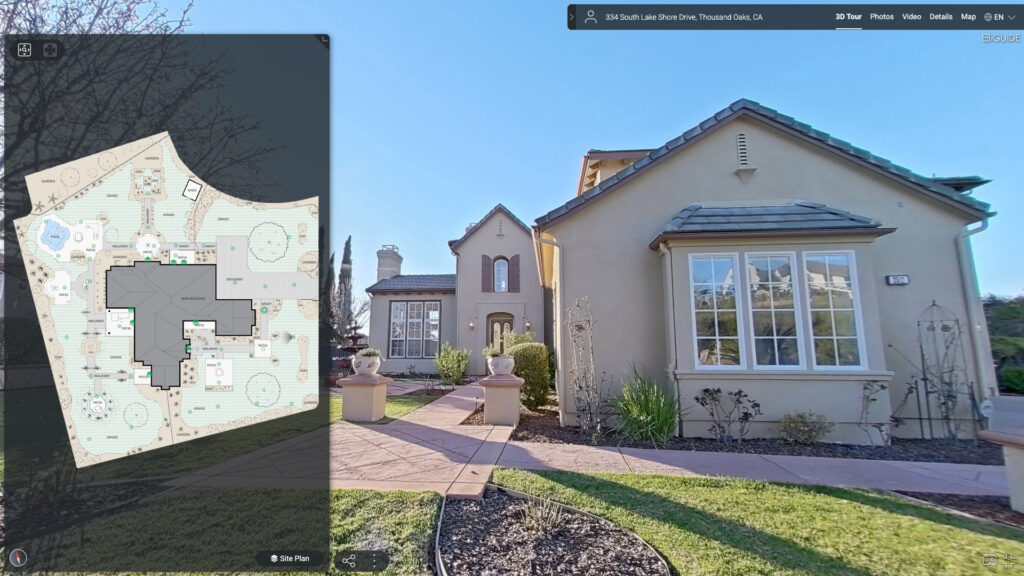
If you photograph acreages, waterfront homes, properties with pools, or homes with detached structures, you have probably heard the same questions from agents and buyers:
- How does the house sit on the property?
- Where is the pool in relation to the home?
- How does the driveway connect to the house?
- What other buildings are included?
- How large is the yard or lot?
Interior photos and floor plans answer some of those questions. Drone photography adds another perspective. But neither one necessarily gives buyers a simple, organized view of how the entire property fits together.
That is where iGUIDE site plans can become a valuable addition to your real estate media packages.
I have been photographing real estate full-time for more than 14 years and have photographed over 10,000 homes. Over that time, I have learned that the best add-ons are not the services that sound impressive. They are the services that solve a real problem for the agent, fit naturally into your workflow, and create additional revenue without adding unnecessary complexity.
iGUIDE site plans can do exactly that when you offer them on the right properties.
Watch the original video: iGUIDE Site Plans: A Practical Upsell for Real Estate Photographers
What Is an iGUIDE Site Plan?
An iGUIDE site plan is a schematic, bird’s-eye view of the broader property.
While a floor plan focuses on the inside of the home, a site plan shows how the home is positioned on the land and how the exterior features relate to one another.
Depending on the property and the available capture data, the site plan may represent:
- The building footprint
- Driveways and access points
- Patios and decks
- Pools
- Gardens and landscaping
- Sheds and detached garages
- Additional structures
- Outdoor living areas
- Estimated property boundaries
- Estimated lot size when third-party satellite data is available
The goal is to help buyers understand the complete property story, not just the rooms inside the house.
This is especially useful when the land itself is part of the property’s value.

iGUIDE Site Plans vs. Floor Plans
A floor plan and a site plan are related, but they are not interchangeable.
| Deliverable | What it shows | Main buyer question |
|---|---|---|
| Floor plan | Interior rooms, layout, dimensions, and flow | “How is the inside of the home arranged?” |
| Site plan | Building placement, land context, outdoor features, and access | “What does the complete property look like?” |
A floor plan may show the relationship between the kitchen, living room, bedrooms, bathrooms, and garage.
A site plan extends that information outside. It can show how the driveway approaches the house, where the pool sits, how a detached shop relates to the main building, or how the outdoor spaces are arranged.
The two deliverables complement one another.
At RE Media Systems, I recommend including a premium floor plan in every listing package when it fits your workflow. Floor plans provide useful information on virtually every property.
Site plans are different. They are most valuable when the exterior layout is an important part of what the buyer is considering.
Scott’s Field Note: Floor plans explain the home. Site plans explain the property. When the land matters, buyers need both.
For more guidance on creating efficient media packages, visit the RE Media Systems resources and guides.
What Do iGUIDE Site Plans Include?
When you order an iGUIDE site plan add-on, the deliverables can be used in several different ways.
1. High-Resolution JPEG
The site plan is available as a high-resolution JPEG that can be used for:
- MLS marketing
- Social media
- Listing presentations
- Printed brochures
- Agent websites
- Email marketing
- Other property marketing materials
This gives the agent a simple image file that can be shared without requiring a buyer to open the full virtual tour.
2. Editable SVG File
An SVG file is also available for clients who want an editable version.
This may allow an agent or marketing team to customize the graphic for their own presentation materials. The exact way an SVG is edited will depend on the software being used, but the important point is that the client receives more than a flat image file.
3. Site Plan Inside the iGUIDE Viewer
The site plan appears inside the dedicated iGUIDE viewer.
This allows buyers to move between the interior experience and the exterior layout in one listing presentation. Instead of sending buyers to one link for photos, another for a floor plan, and another for a separate map, the property information is organized together.
4. Branded Property Overview
The site plan can also be integrated into the branded property overview.
This is a polished PDF that includes property information, floor plans, site plans, and the agent’s branding details. According to the workflow discussed in the video, the branded property overview is automatically generated with the order at no extra charge and is included with standard and premium orders.
That creates another useful deliverable for agents who want a professional document to share with clients and prospects.

Which Properties Are Best for a Site Plan Upsell?
A site plan is not necessary for every property.
For a small condo with no meaningful outdoor space, there may not be enough exterior context to justify adding one. In those situations, I would focus on providing an excellent floor plan and the rest of the agreed-upon media package.
The strongest site plan opportunities are properties where the land and exterior layout matter.
Consider offering it for:
- Acreages
- Rural properties
- Waterfront homes
- Estate properties
- Homes with pools
- Properties with large yards
- Homes with detached garages
- Properties with shops or outbuildings
- Listings with guest houses
- Homes with extensive landscaping
- Properties with multiple access points
- Listings where buyers need to understand the relationship between the home and the land
A useful test is to ask:
Would a buyer have questions about what is included outside the walls of the house?
If the answer is yes, the property may be a good candidate.
You do not need to sell the site plan on every listing. You need to recognize the listings where it solves a clear communication problem.
The Two-Phase iGUIDE Capture Workflow
The good news is that you do not need to completely redesign your interior workflow.
An iGUIDE site plan capture consists of two broad phases.
Phase One: Interior Capture
The first phase is your standard interior iGUIDE capture.
You capture the rooms, circulation, and interior property information as you normally would. Your process for creating the interior virtual tour and floor plan remains essentially unchanged.
This is important because the site plan should fit into your existing system rather than force you to create a separate production process for every listing.
Phase Two: Exterior Scans
The second phase is exterior scanning.
After completing the interior, capture the exterior areas that help explain the property layout. You are not necessarily scanning every part of the lot. You are collecting enough useful information for the processing team to understand the location and relationships of the important features.
Good places to consider include:
- The front of the home
- The driveway
- The main entry
- Side access points
- Patios and decks
- Pools
- Gardens
- Significant landscaping
- Detached garages
- Shops and sheds
- Guest houses
- Outdoor living areas
- Areas where the house connects to the surrounding land
The exterior scans should generally be captured on the same floor as the primary living space: typically the main floor or ground floor.
You do not need to manually organize the outdoor scans into a separate floor. The iGUIDE processing team will automatically separate the exterior scans onto the dedicated site plan floor.
Exterior Scan Spacing Guidelines
Scan spacing is one of the most important factors in the exterior workflow.
You need enough scan locations for the processing team to understand the property, but you do not need to place scans everywhere without a reason.
Use this practical framework:
| Exterior area | Recommended spacing |
|---|---|
| Gardens, pools, or areas with many features | 5–10 feet between scans |
| Medium-complexity yards and outdoor areas | Approximately 10 feet |
| Open lawns, simple side yards, or low-detail areas | Approximately 15 feet |
The basic rule is simple:
More detail requires tighter spacing. Fewer features allow wider spacing.
For example, a pool area with a patio, retaining wall, landscaping, and several access points needs more capture density than a simple open lawn.
A large property does not automatically require a scan every few feet. Concentrate on the areas that buyers would want to understand.
Maintain a Clear Line of Sight
Try to maintain a clear line of sight between scan positions.
This helps reduce alignment problems and gives the processing team stronger visual reference points.
When choosing scan locations, prioritize distinctive stationary features such as:
- The side of the home
- A detached structure
- A large tree or dense shrub
- A retaining wall
- A pool enclosure
- A visible driveway
- A permanent fence line
These stationary features help provide reference points as the exterior data is aligned.
Weather and Outdoor Capture Considerations
Weather matters.
Do not capture exterior scans during active rain or snow. Moisture and changing conditions can interfere with the capture process and may make the final site plan less reliable.
If the interior is ready but the weather is not, you can complete the interior capture and return for the exterior portion when conditions improve. Alternatively, reschedule the complete session if that is more practical for your business and the client.
You should also consider:
- Strong wind moving trees or vegetation
- Snow covering important landscape features
- Standing water obscuring patios or paths
- Poor visibility around the property
- Temporary vehicles or equipment blocking access
- Construction materials that may be removed later
- Seasonal changes to landscaping
The site plan represents what is captured at the property. If an important feature is hidden, blocked, or difficult to see, the final result may not show it clearly.
Scott’s Field Note: Treat the exterior capture as a documentation task. Walk the property first, identify what matters, and then place scans where they help explain the layout.
How to Order an iGUIDE Site Plan
The ordering process is straightforward when you build it into your existing booking workflow.
A practical process looks like this:
- Add the iGUIDE virtual tour and floor plan to the order.
- Add the site plan as an optional add-on when the property qualifies.
- Complete the standard interior capture.
- Capture the required exterior scans.
- Upload all project data to the iGUIDE Portal.
- Confirm that the exterior data is included with the project.
- Review the final site plan and associated deliverables.
- Deliver the viewer link, files, and branded property overview to the agent.
The important operational detail is that the site plan should be selected before processing. Do not assume that interior scans alone will produce an exterior site plan.
iGUIDE Site Plan Pricing and Margin Examples
The site plan add-on is commonly sold to clients for $100–$300, depending on the property, your market, the complexity of the site, and how you package the service.
For many medium-sized homes and yards, $100 can be a reasonable starting point. Larger or more complex properties may justify a higher price when the site plan requires more detailed exterior capture and delivers more useful information to the client.
The approximate processing cost discussed in the video is:
- $35 USD
- $45 CAD
- $25 AUD
Here is the simple gross difference before your other business costs:
| Client price | Approx. USD processing cost | Difference before other costs |
|---|---|---|
| $100 | $35 | $65 |
| $300 | $35 | $265 |
For Canadian photographers:
| Client price | Approx. CAD processing cost | Difference before other costs |
|---|---|---|
| $100 | $45 | $55 |
| $300 | $45 | $255 |
For Australian photographers:
| Client price | Approx. AUD processing cost | Difference before other costs |
|---|---|---|
| $100 | $25 | $75 |
| $300 | $25 | $275 |
These are not take-home profit figures. You still have to account for your time, equipment, travel, software, taxes, payment processing, administration, and business overhead.
However, if you are already at the property completing photography and an iGUIDE capture, the site plan can be an efficient way to create an additional deliverable from the same assignment.
Do not lower your client pricing simply because your production cost is lower than expected. Your client is paying for your complete service, experience, consistency, communication, and delivery, not just the processing fee.
For more help building value-based packages, read the RE Media Systems Real Estate Photography Pricing Guide.
Processing Time
Standard iGUIDE site plan orders are generally processed within 24 hours after the required data has been uploaded.
More complex properties, including large acreages or sites with many exterior features, may require approximately 48 hours.
Properties with extensive acreage, complex site layouts, or more than 10,000 square feet of interior space may take longer depending on the overall size and complexity.
Set clear expectations with your client before the shoot. If the agent needs everything for an early morning launch, confirm whether the property qualifies for the standard processing timeline before promising delivery.
How to Pitch the Site Plan Add-On
Do not pitch a site plan by leading with technical specifications.
Lead with the problem it solves.
For example:
“I noticed this property has a pool and a detached garage. A standard floor plan will show the interior, but it will not show buyers how the house, pool, driveway, and garage relate to each other. I can add an iGUIDE site plan that shows the complete property layout.”
That is a better pitch than:
“Would you like to buy an additional site plan?”
The first version connects the service to a visible property feature. It explains why the agent should care.
You can also use a short package description:
iGUIDE Site Plan Add-On: A bird’s-eye schematic of the home, lot, and key exterior features. Best for acreages, waterfront homes, properties with pools, and listings with detached structures.
Position the site plan as a premium addition to your existing virtual tour and floor plan package, not as an unrelated service.
Common Mistakes
1. Offering a Site Plan on Every Property
A site plan is not automatically valuable on a small property with little exterior context.
Use judgment. Offer it where it helps buyers understand the listing.
2. Scanning Too Far Apart in Detailed Areas
A pool, garden, or complex outdoor living area may require scans every 5–10 feet. Spacing scans too far apart can leave the drafting team without enough visual information.
3. Scanning Without a Clear Line of Sight
Random scan placement can make alignment more difficult. Use visible, stationary reference points.
4. Capturing During Rain or Snow
Active weather can interfere with exterior capture. If conditions are poor, complete the interior and return later or reschedule.
5. Forgetting to Add the Site Plan During Ordering
The exterior data must be processed as a site plan add-on. Make it a checkbox in your order workflow.
6. Treating Estimated Boundaries as Exact
Do not describe the boundary lines as legally accurate. They are estimates based on third-party data.
7. Selling It as a Survey
A site plan is a marketing visual. It is not a certified survey, construction drawing, legal boundary document, or permit document.
Site Plan Disclaimer
Make this clear to your clients:
iGUIDE site plans are schematic marketing visuals intended to help buyers understand the general layout of a property. They are not certified land surveys. Boundary lines and lot sizes are estimates based on third-party satellite data when available. Measurements are illustrative only and must not be used for legal, construction, permitting, engineering, or land-survey purposes. If satellite coverage is unavailable, an estimated lot size may not be included.
This disclaimer protects clarity and helps prevent agents or buyers from treating the graphic as something it is not.

iGUIDE Site Plan Workflow Checklist
Before the Shoot
- Identify whether the property has meaningful exterior features.
- Add the site plan as an optional service in the order.
- Confirm the agent understands what the deliverable includes.
- Check the weather forecast.
- Confirm access to the front, rear, and side areas of the property.
- Explain that the site plan is not a certified survey.
Interior Capture
- Complete the standard iGUIDE interior capture.
- Capture all required rooms and levels.
- Keep your standard floor plan workflow unchanged.
- Confirm the interior data is complete before moving outside.
Exterior Capture
- Capture the front of the home and driveway.
- Capture major access points.
- Capture patios, decks, and pools.
- Capture detached garages, shops, sheds, or guest houses.
- Use 5–10-foot spacing in detailed areas.
- Use approximately 15-foot spacing in simple, low-detail areas.
- Maintain clear lines of sight.
- Prioritize stationary reference features.
- Keep exterior scans on the same floor as the primary living space.
Ordering and Delivery
- Confirm the site plan add-on is selected.
- Upload all interior and exterior data.
- Allow 24 hours for standard sites.
- Allow approximately 48 hours for complex sites.
- Download the JPEG and SVG deliverables.
- Confirm the site plan appears in the iGUIDE viewer.
- Deliver the branded property overview when included.
- Send the disclaimer with the client-facing materials when appropriate.
Frequently Asked Questions
1. What is an iGUIDE site plan?
An iGUIDE site plan is a schematic, bird’s-eye view of the property. It shows how the home sits on the land and may represent outdoor features such as driveways, pools, patios, gardens, and detached structures.
2. How is a site plan different from a floor plan?
A floor plan shows the interior layout of the home. A site plan shows the exterior layout and how the home relates to the surrounding property.
3. Do I need both a floor plan and a site plan?
They serve different purposes. I recommend including a premium floor plan in every listing package when it fits your workflow. Add a site plan when the land, outdoor features, or additional structures are important to the property story.
4. Do site plans require a separate site visit?
Not normally when you capture the required exterior scans during the same property assignment. However, poor weather or access issues may require you to return for the exterior portion.
5. How far apart should exterior scans be?
Use 5–10 feet between scans in high-detail areas such as pools, gardens, and structures. Approximately 15 feet may be sufficient for simple, low-detail areas.
6. Can I scan the entire lot?
You do not necessarily need scans everywhere. Focus on the areas buyers need to understand and the features that explain how the property is organized.
7. What happens if it is raining or snowing?
Avoid active rain or snow during exterior capture. Complete the interior if appropriate and return when conditions improve, or reschedule the session.
8. Do I need to organize exterior scans manually?
No. Place the scans on the same floor as the primary living space. The iGUIDE processing team will automatically separate the outdoor scans onto the dedicated site plan floor.
9. How much should I charge for an iGUIDE site plan?
The source video discusses a common client price range of $100–$300. Your final price should reflect your market, the property’s complexity, your package structure, and your overall service value.
10. What does iGUIDE processing cost?
The approximate costs discussed are $35 USD, $45 CAD, or $25 AUD. Confirm current pricing directly with iGUIDE before updating your packages or quoting clients.
11. How long does processing take?
Standard site plans are generally processed within 24 hours after the necessary data is uploaded. Complex properties may require approximately 48 hours or longer depending on size and complexity.
12. Are site plan boundary lines exact?
No. Boundary lines are estimates based on third-party satellite data when available. They are not guaranteed or certified.
13. Can an agent use a site plan for construction or legal purposes?
No. Site plans are schematic marketing visuals. They should not be used for legal, construction, engineering, permitting, or land-survey purposes.
14. What file types are delivered?
The site plan appears in the iGUIDE viewer and can also be included in a Branded Property Overview. Confirm the current download options in the iGUIDE Portal before promising specific file formats to clients.
Final Summary
iGUIDE site plans are useful because they answer a question that interior photography and floor plans cannot answer on their own:
What does the complete property look like, inside and out?
The workflow is straightforward:
- Complete your normal interior iGUIDE capture.
- Capture key exterior areas around the property.
- Use tighter spacing in detailed zones.
- Maintain clear lines of sight.
- Avoid active rain and snow.
- Add the site plan during ordering.
- Set expectations around processing time and limitations.
- Price it as a premium add-on based on value.
You do not need to sell site plans on every listing. Focus on acreages, waterfront homes, pools, estates, detached structures, and properties where the land is part of the buyer’s decision.
If you already provide floor plans and virtual tours, the site plan can help you move from delivering individual media files to providing a more complete property marketing system.
That is the business opportunity. You are not simply adding another graphic. You are helping the agent answer buyer questions, improving the completeness of the listing, and creating an additional revenue opportunity that can fit into your existing workflow.
What To Do Next
- Review your current packages and identify where iGUIDE site plans could fit.
- Add the site plan as an optional service in your booking or shopping cart system.
- Create a simple property checklist for pools, acreages, waterfront homes, and detached structures.
- Practice the two-phase interior and exterior capture workflow.
- Use the 5–10-foot spacing guideline for detailed areas and approximately 15 feet for simple areas.
- Write a short, problem-based pitch for agents.
- Test the add-on on appropriate properties before making it a standard offer.
- Keep your client pricing based on the value of the complete service, not simply your production cost.
For more systems and workflows, visit the RE Media Systems Community, explore the Resources page, and review the Recommended Gear.
You can also continue with the 60-Minute Real Estate Photography Workflow and our Complete HDR Real Estate Photography Guide.
The goal is always the same: build a real estate media business that helps you shoot faster, earn more, deliver better quality, and create more freedom in your work.